



For users of Windows Personal Computers and Desktops, the impending end of free support for Windows 10 is a critical matter requiring immediate attention. With the final free cumulative update now released, developing a plan is essential to mitigate significant security risks and ensure your machine remains relevant and protected.
Microsoft officially announced that free feature and critical security updates for Windows 10 will conclude on October 14, 2025. This significant milestone directly affects an estimated 400 million PCs globally that are currently operating on Windows 10.
Microsoft strongly advises users to either upgrade to Windows 11 for free or enroll in the Extended Security Updates (ESU) program to obtain an additional year of protection. Clear pathways exist to maintain your device's security, but prompt action is crucial to prevent your device from becoming vulnerable once the support window closes.
According to a recent report from Windows Latest, the Windows 10 KB5066791 update is the final one available for users who do not subscribe to the Extended Security Updates (ESU) program after October 2025.
For your personal computer, the end of support signifies more than just the cessation of new features; it means your PC will no longer receive patches for newly discovered vulnerabilities. This leaves your system exposed to advanced malware, ransomware, and other cyber threats.
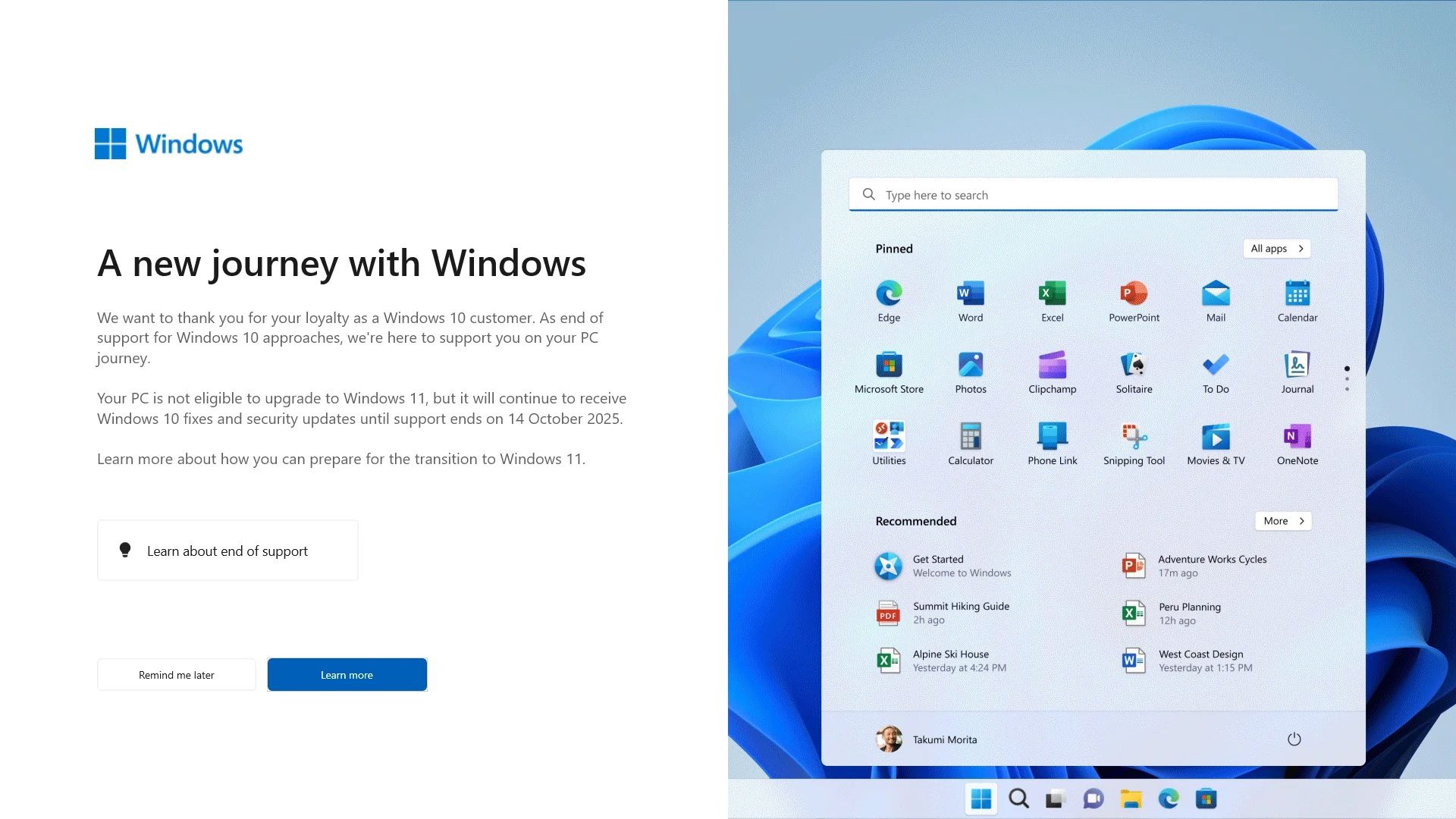
Microsoft's communication indicates that while they will encourage Windows 11 installations, there will be no specific nudges to try Windows 10's Extended Security Updates, which are provided free of charge when a Microsoft account is used. This approach aligns with Microsoft's objective of encouraging users to adopt Windows 11.
To avert a substantial security risk and keep your computers up-to-date, an immediate upgrade plan is imperative. This comprehensive guide will assist you in determining your PC's eligibility, exploring all available options, and securely transitioning to a modern, supported operating system.
Phase 1: Determine Your PC’s Future
The primary consideration is whether to upgrade to Windows 11 or remain on Windows 10 with a security extension. The initial step involves checking your PC's eligibility for Windows 11.
If you are inclined to upgrade to Windows 11, it is important to note that the upgrade is free, and Microsoft is likely to provide ample prompts to facilitate this transition.
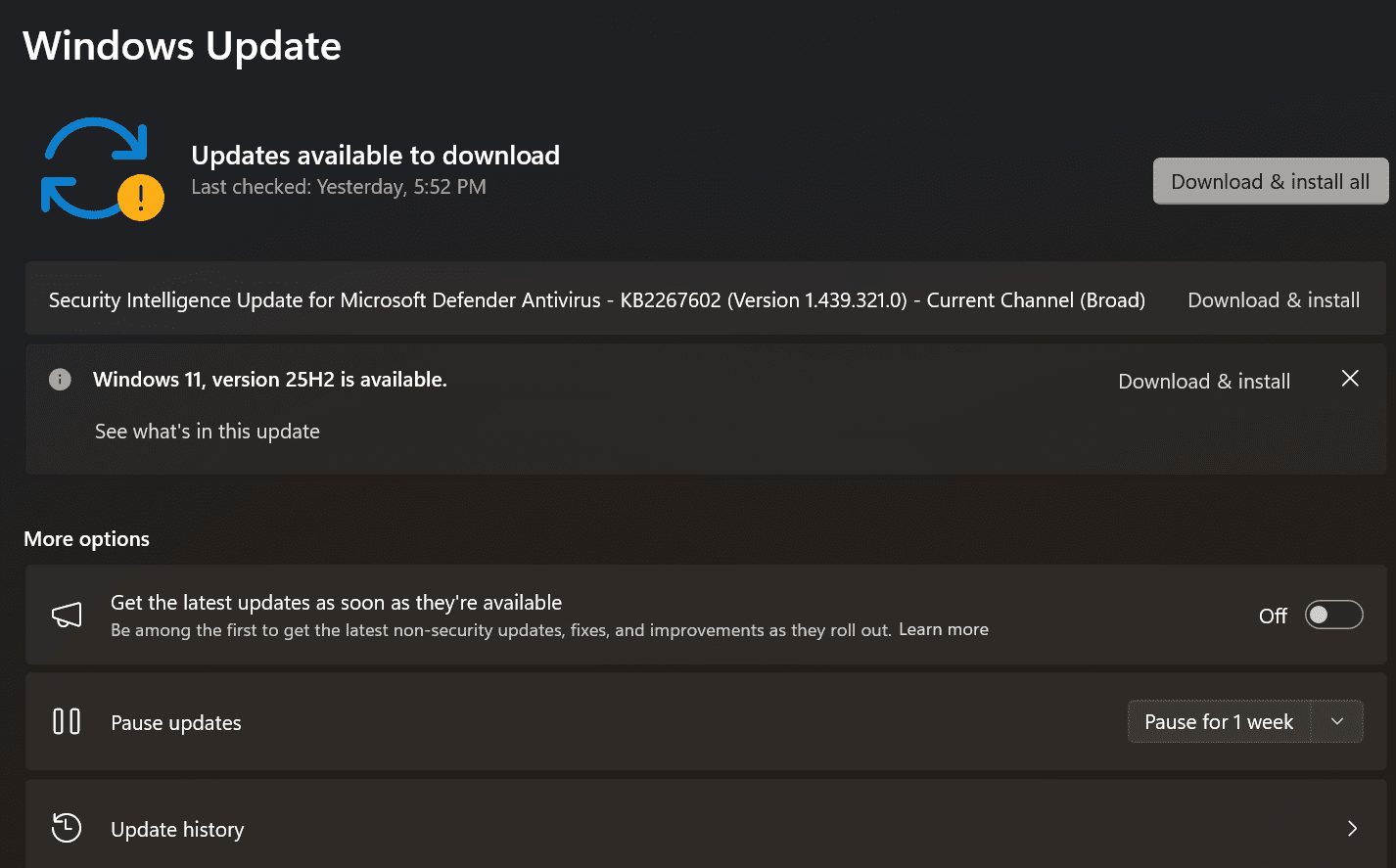
To verify your current PC's eligibility for the free Windows 11 upgrade, Microsoft offers a straightforward check: Navigate to Start > Settings > Update & Security > Windows Update and select "Check for updates."
- •If your PC is eligible, a prompt to upgrade to Windows 11 will be displayed.
- •If your PC does not meet the requirements for Windows 11, you will need to consider the Extended Security Updates (ESU) option.
Phase 2: Weigh Your Options: Windows 10 or 11
Option A: Upgrade to Windows 11
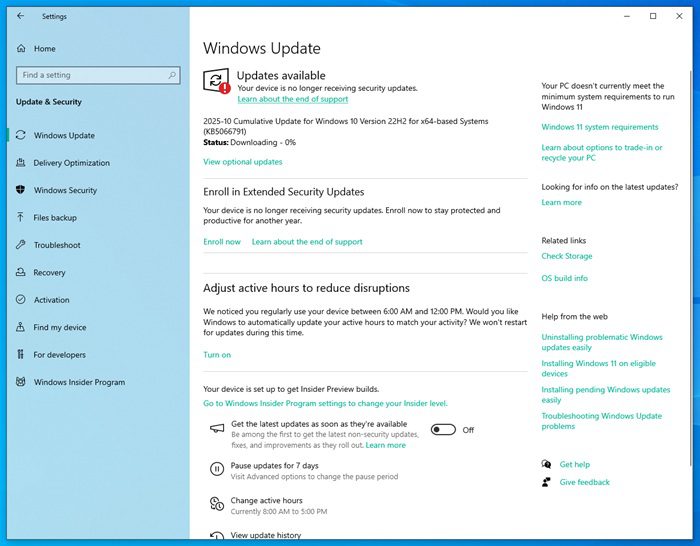
If your PC is eligible, proceed by following the on-screen instructions within the Windows Update section to initiate the upgrade process. Upgrading to Windows 11 ensures you are on a modern, fully supported operating system, thereby resolving all long-term security concerns.
Option B: Enrol in the Extended Security Updates (ESU) Program
For users who are not eligible for Windows 11 or prefer to continue using Windows 10, the ESU option is available. This program is designed for the hundreds of millions of users who have not yet transitioned to Windows 11.
The ESU program will provide security updates for approximately one year, extending support until October 14, 2026. This offers a 12-month grace period to "prepare for the transition to Windows 11," as stated by Microsoft. Upon enrollment, you will receive a security update on November 11, 2025.
To enroll in the ESU program, you have two options for the $30 fee:
- Free enrollment: The $30 fee is waived if you agree to sync your PC settings. You can sign up by selecting the "Enroll now" button on the Windows Update page, linking your Microsoft account, and enabling OneDrive sync for Settings.
- Microsoft Rewards: You can redeem 1,000 Microsoft Rewards points in lieu of a cash payment.
Phase 3: Install the Final Free Update (KB5066791)
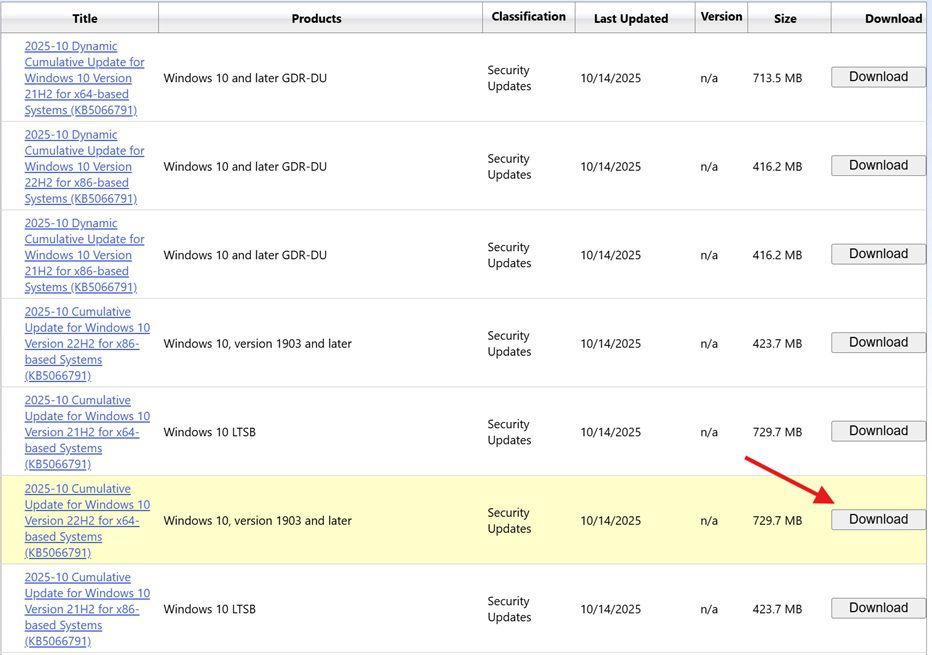
The October 2025 update is the final one you will receive if you do not subscribe to the ESU program. This update addresses several bugs, though most changes are intended for enterprise users, with minimal new features for consumers. The update is deployed automatically via Windows Update. Alternatively, Microsoft provides direct download links for KB5066791 (.msu) on the Microsoft Update Catalogue.
When accessing the Update Catalogue, select the download that corresponds to your PC's specific architecture. Installing this update will advance your PC to Windows 10 Build 19045.6456.
It is essential to ensure that the latest servicing stack update (SSU) is installed on your PC prior to installing this update. Failure to install the latest SSU may result in the Windows update not being offered until the SSU is applied.
To manually install the update, go to Settings > System > About and verify your OS Edition and CPU architecture.
The majority of PCs use a 64-bit (x86) architecture. Upon opening the Update Catalogue, choose the download that matches your specific PC architecture. Installing this update will bring your PC to Windows 10 Build 19045.6456.